
If you read enough post-compromise writeups, a pattern emerges. The WordPress site that got hacked was rarely running a cutting-edge zero-day exploit. More often it was running a three-year-old vulnerable plugin that the site owner had forgotten about, a weak administrator password that a credential-stuffing bot found in eighteen minutes, or a file-permission mistake that let an attacker drop a webshell through a form upload. The attack was not sophisticated. The defense was not configured.
This piece is the strategic companion to our fifteen-minute security checklist. The checklist tells you what to do. This tells you the model underneath the what. Because if you understand the model, you can apply the checklist with judgment: know what to prioritize on the site you are actually responsible for, know when a default setting is wrong for your specific case, and know what the next layer up looks like when you are ready to add it.
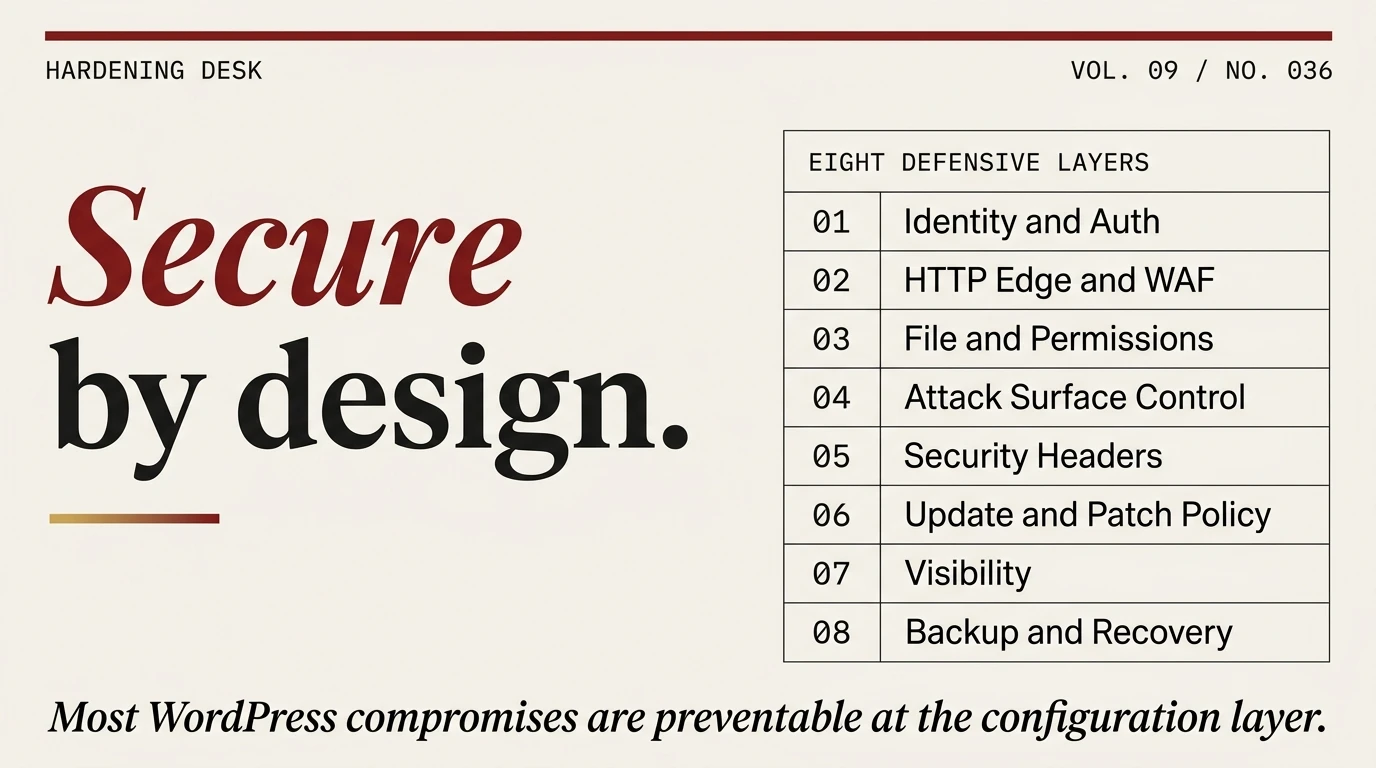
Securing a WordPress site is not a single task. It is eight defensive layers, operated with some combination of automation and discipline, on a site you continuously update as both WordPress and attackers change underneath you. This piece walks through all eight.
The threat model you are actually defending against
Before the layers, the model. WordPress powers roughly 43 percent of all websites on the public internet. That market share makes WordPress the single highest-value target in the commodity web attack ecosystem, and it means the attacks that reach a typical site are automated, indiscriminate, and economically motivated. You are not being targeted as an individual. You are being targeted as a population.
Automated attacks against WordPress fall into a handful of categories.
Credential-stuffing against wp-login.php. Bots work through pools of leaked credentials from other breaches, trying username-and-password pairs against every WordPress site they can find. If your administrator password was reused from a site that breached in 2019, you are in the pool. A successful login gives full control. This is the most common WordPress intrusion in our incident data.
Exploitation of known plugin and theme vulnerabilities. When a plugin ships a security fix, the vulnerable version becomes a public target. Automated scanners find sites still running the old version and exploit them. The window between “CVE disclosed” and “mass exploitation in progress” is often measured in hours.
Supply-chain compromise. A plugin developer sells their portfolio, the new owner pushes a malicious update, and every site running that plugin becomes compromised on the next auto-update cycle. We covered this in our Essential Plugin backdoor reporting. The defensive response is different from the two above and we will get to it.
Direct injection through unsanitized inputs. SQL injection, cross-site scripting, arbitrary file upload through form handlers that do not validate input. Less common than the first two but still ubiquitous on poorly-written custom plugins and themes.
The goal of the attacker in most cases is not to read your data. It is to turn your site into something else. A spam relay. A phishing landing page. An SEO cloaking host. A cryptocurrency miner. A pivot point into other sites on the same server. Most compromised WordPress sites are not breached for what they contain. They are breached for what they can become.
That threat model has two consequences for how you harden. First, the baseline defenses matter more than the clever ones. Second, visibility matters as much as prevention, because a compromise you detect in hours is fundamentally less expensive than one you detect in months.
Layer one: identity and authentication
If you do nothing else in this piece, do this. The single most productive hardening action on a typical WordPress site is making the login system resistant to automated attacks. Four specific moves:
Enforce strong passwords on every administrator and editor account. A password of fewer than 12 characters made of common words is going to fall to credential-stuffing given enough time. A password of 20-plus characters, randomly generated, stored in a password manager, is not. The difference is cheap to deploy and eliminates the most common intrusion vector. Do this first.
Turn on two-factor authentication for every privileged account. TOTP apps (Authy, Google Authenticator, any standard TOTP implementation) work. SMS-based 2FA is better than nothing and worse than TOTP. A passkey or hardware key is better than both. On a WordPress site the pragmatic default is TOTP via a well-reviewed plugin like Solid Security or Wordfence, both of which implement 2FA competently. Enabling 2FA on the administrator account closes the credential-stuffing vector almost completely.
Minimize the administrator count. If someone needs to write content, give them the Author role. If someone needs to manage content, give them the Editor role. Administrator access should be limited to people who actually administer the site. Every extra administrator account is an extra target for credential-stuffing, and WordPress’s default role model gives you granular control for free.
Rate-limit wp-login.php. Even with strong passwords and 2FA, the login endpoint itself generates load when it is hammered by bots. Rate-limiting login attempts cuts that load and makes the attack surface quieter. Every serious WordPress security plugin does this, and Cloudflare’s free tier can do it at the edge if you prefer.
In our incident response work across client sites over the last two years, the percentage of compromises that would have been prevented by a strong password plus 2FA on the administrator account is above 60 percent. This layer is where the returns are largest.
Layer two: the HTTP edge
The second layer is filtering traffic before it hits WordPress. A request to your site from an attacker only becomes a problem if it reaches your PHP code. Filtering at the edge stops problems before they start.
Two tools matter here.
A Web Application Firewall (WAF). A WAF inspects incoming requests and blocks ones that match attack patterns. Cloudflare’s free tier provides basic edge WAF rules on every plan. Sucuri‘s cloud WAF is WordPress-tuned and includes cleanup services. Wordfence‘s plugin WAF runs at the PHP layer on your server. Patchstack adds virtual-patch rules for plugin-specific CVEs. Pick one approach (cloud or plugin) and deploy it. Running both is usually redundant.
A CDN with basic bot protection. Cloudflare’s free tier includes this too. Bot protection deflects low-effort scanners before they consume server resources and keeps your origin lighter under attack load. It does not replace a WAF; it complements it.
The most important thing about the HTTP edge is that it should sit between the attacker and your origin. If an attacker can find your origin IP and connect to it directly, the edge protection is bypassed. This is the well-known origin-IP leak problem. DNS history services, certificate transparency logs, and email headers are the main leak vectors. If you run a cloud WAF seriously, restrict origin access to the WAF’s IP ranges at the web-server level. Otherwise the filtering is optional from the attacker’s perspective.
Layer three: file and permission hygiene
WordPress runs on a POSIX filesystem, and most WordPress compromises eventually touch the filesystem. Getting filesystem hygiene right is a high-leverage hardening move.
Three specific targets.
File and directory permissions. WordPress core documentation specifies the correct permissions: directories 755, files 644, wp-config.php 600 or 640 when possible. The web user (www-data on most Linux stacks) should own the WordPress files but not have write access to directories it does not need to write to. Correctly-set permissions prevent an attacker with a foothold in one file from writing to the rest of the filesystem.
Disable file editing from the WordPress admin. Adding define('DISALLOW_FILE_EDIT', true); to wp-config.php removes the Plugin Editor and Theme Editor from the admin interface. If an attacker gains administrator access, they cannot use the built-in editor to drop arbitrary PHP code into your plugins. This is a small change with a real defensive effect.
Protect wp-config.php from web access. The file contains database credentials and auth keys. A misconfigured web server can sometimes serve it as plain text. Add the nginx or Apache rule to deny HTTP access to any file matching wp-config.php, and verify by requesting it over HTTPS and confirming you get a 403 or 404 rather than the file contents.
Layer four: HTTP attack surface control
WordPress ships with a number of HTTP-accessible endpoints and features that are legitimate for specific use cases and optional for most sites. Every endpoint you do not need and do not disable is attack surface for the attacks that happen to target it.
XML-RPC. WordPress’s XML-RPC interface was designed for remote publishing via desktop blog editors and API integrations. Almost no modern WordPress site uses it in anger. Attackers use it to amplify credential-stuffing attacks because a single XML-RPC call can test multiple passwords at once. If you are not using XML-RPC, disable it at the web-server level by returning 403 for any request to xmlrpc.php.
REST API permission callbacks. The WordPress REST API exposes site data and actions over HTTP. Many endpoints are public by design. Some are not, and poorly-written plugins register endpoints with 'permission_callback' => '__return_true' which makes them accessible to unauthenticated callers. The Essential Plugin backdoor exploited exactly this pattern. If you run a plugin audit, check for endpoints with wide-open permission callbacks and either harden or remove them.
Author enumeration. By default WordPress will return author information when you request URLs like /?author=1, exposing usernames that attackers can then feed into credential-stuffing. Redirect or 404 these URLs at the web server. It does not stop credential attacks but it removes the easy username discovery step.
Directory indexing. WordPress ships an empty index.html in wp-content and elsewhere to prevent directory listings, but misconfigured web servers sometimes serve the listing anyway. Verify that requests to any WordPress directory (including /wp-content/uploads/) return 403 or a redirect, not a list of files.
None of these four are individually dramatic. Combined they remove several of the easier automated exploits from the attack surface available to a random scanner.
Layer five: security headers
HTTP security headers are a hardening layer that almost no default WordPress installation configures and that almost every compromise response includes. Four matter.
Strict-Transport-Security (HSTS). Tells browsers to only ever access your site over HTTPS for a specified time. Prevents active-network attackers from downgrading a connection to HTTP. Enable on every production WordPress site once you are confident HTTPS is working correctly.
Content-Security-Policy (CSP). Restricts which sources the browser will load scripts, styles, and other resources from. Makes injected content far harder to execute even if an attacker manages to drop a script tag somewhere. CSP is harder to deploy correctly than the other headers because it interacts with every third-party resource your site loads, but a permissive starting policy is still better than no policy.
X-Frame-Options. Controls whether your site can be embedded in an iframe on another domain. Defends against clickjacking attacks where a malicious site embeds yours and tricks users into clicking through a transparent overlay. Set to SAMEORIGIN unless you have a specific reason to allow framing.
Referrer-Policy. Controls what Referer header your pages send to other sites when users click outbound links. Set to strict-origin-when-cross-origin as a sensible default that preserves analytics on your own domain without leaking full URLs to third parties.
Every serious security plugin can set these headers for you. Solid Security‘s Security Headers module is the best free-tier implementation we have tested. Cloudflare can set them at the edge. nginx and Apache can set them in server config. Pick one mechanism and verify by running your site through securityheaders.com.
Layer six: update and patch policy
Most known WordPress vulnerabilities have a patch available before they are exploited in the wild. The site that gets hit is the site that did not apply the patch. Update policy is therefore one of the highest-leverage defenses available, and the one most sites get partially right and partially wrong.
Turn on auto-updates for WordPress core. Core auto-updates have been stable for years. The WordPress team does not push breaking changes through the auto-update channel. The risk of a core auto-update breaking your site is far lower than the risk of running an unpatched core version for weeks because you forgot to log in and run the update manually.
Turn on auto-updates for most plugins. This is where judgment comes in. Auto-updating plugins is the right default for the majority of plugins from established developers. It is the wrong default for plugins that are tightly coupled to your theme or that have a history of shipping breaking changes. For the latter category, maintain a manual update process with a staging environment.
Subscribe to a vulnerability feed. Wordfence, Patchstack, and the WordPress.org plugin directory all publish information about disclosed plugin vulnerabilities. You want to know within hours, not weeks, when a plugin you run gets a security advisory. A plugin like Patchstack gives you an in-dashboard alert on the affected sites; subscribing to the Wordfence intelligence feed or an equivalent RSS gives you the broader picture.
Maintain a “trust audit” on your plugin inventory. This is the defense against the supply-chain compromise vector. Every six months, look at the plugins you run and ask: is this maintained by a developer whose identity is public and verifiable? Is the plugin actively updated? Has ownership changed hands recently? Plugins that fail this audit are future supply-chain exposure, even if they are working fine today. Replace them with alternatives from developers with more durable identities.
Layer seven: visibility
Prevention reduces the probability of compromise. Visibility reduces the cost of the ones that happen anyway. A compromise you detect in hours is one or two steps of cleanup. A compromise you detect in months has usually drifted into persistence, secondary malware, reputation damage in search engines, and expensive recovery.
Three specific visibility surfaces.
An audit log of administrator actions. You want to know every time a plugin is installed, a user role is changed, a file is edited through the admin, or a theme is switched. If an attacker compromises an account, their first actions are usually captured in an audit log. Solid Security, Wordfence, and a handful of standalone audit-log plugins all offer this.
File integrity monitoring. Your WordPress files on disk should not change except when you change them. A file integrity monitor takes a baseline of file hashes and alerts on drift. Changes outside your deployment process are a strong compromise signal. Every serious security plugin offers this; it is also possible to roll your own with a cron job and a diff against git.
Outbound traffic observability. Compromised sites make outbound HTTP requests to attacker-controlled infrastructure. If your site suddenly starts hitting a domain you do not recognize, that is a strong signal. Most hosting providers can give you outbound traffic logs on request, and tools like Fathom or self-hosted log aggregation give you the same visibility on your own.
None of this prevents compromise. All of it shortens time-to-detection, which is what determines whether a compromise is a minor inconvenience or a major incident.
Layer eight: backups and recovery
The last layer is the one that matters most on the day you need it. Backups are not security in the prevention sense. They are security in the recovery sense. When something goes wrong and you need to restore a clean site, the quality of your backup strategy determines how painful that restoration is.
Four requirements for a WordPress backup that will actually help you.
Off-site storage. A backup on the same server as the site is not a backup. It is a copy that will be lost alongside the original in a host-level incident. Store backups on a different provider (S3, Backblaze, Google Cloud Storage, a separate hosting account) with different credentials than the production server.
Reasonable retention. Compromises often go undetected for weeks. If your backups only go back 48 hours, by the time you notice the compromise every available backup is already infected. A retention window of 30 days minimum, with monthly snapshots going back six months or more, lets you actually roll back to a clean state.
Database and filesystem coverage. A full WordPress backup includes both the database (MySQL dump) and the filesystem (wp-content at minimum, ideally the full WordPress root). Backups that only capture one or the other are incomplete and may not support a full restore.
Tested restore. The backup you have never tested is the backup that will fail the first time you need it. At least once per quarter, run a test restore to a staging environment. Confirm the site comes back up. Confirm the data is present. Confirm your restore runbook actually works when you follow it. This is the only way to know you have a working backup strategy rather than a backup strategy you hope works.
What to automate and what to operate
Eight layers is a lot of surface to keep current by hand. For a single site, most of this can be automated through a combination of a security plugin, an edge CDN, and a backup provider. For a portfolio of sites, the question becomes operational: what automation can cover the whole portfolio, and what must be done per-site?
Our pragmatic split.
Automate with a security plugin: 2FA, brute-force lockouts, security headers, file integrity monitoring, audit logs, and the security header module. A single plugin (Wordfence, Solid Security, or an equivalent) covers most of this on every site.
Automate at the edge: WAF rules, rate-limiting, HSTS enforcement, CDN caching. Cloudflare’s free tier covers this for every site you proxy through it. Paid edge services like Sucuri add WordPress-specific rules and cleanup bundles.
Automate through auto-updates: Core updates, trusted-plugin updates, security plugin rule refreshes. The cost is a small risk of update-related breakage. The benefit is that you do not need to remember to patch.
Operate by hand: Strong password enforcement at account creation, plugin trust audits, quarterly restore tests, file permission reviews after hosting changes, and response when an alert fires. These are the discipline tasks that no automation replaces.
The ratio of automated to manual work should scale with your site count. If you run one site you can get away with more manual discipline. If you run fifty, every manual task becomes operationally expensive and the automation layer needs to handle almost everything.
The priority order when you are starting from scratch
If you are hardening a WordPress site that has had no hardening work done on it, the cost-effective order is not the order of the eight layers above. Here is what we deploy first, in order of incident-reduction per unit of effort.
- Strong password plus 2FA on the administrator account. Zero cost, implementable in five minutes, closes the single largest intrusion vector.
- WordPress core and plugin auto-updates on. Five more minutes. Closes the known-vulnerability window.
- Cloudflare proxy with basic WAF and bot protection, free tier. Fifteen minutes of DNS work. Cuts automated attack volume dramatically.
- Security plugin install (Wordfence or Solid Security), with file integrity monitoring, brute-force lockout, and security headers enabled. Fifteen minutes.
- Off-site backup configured and first snapshot verified. Thirty minutes to an hour depending on provider.
- Plugin trust audit: remove plugins you do not use, replace plugins with questionable ownership. Ongoing but the first pass is an hour.
- File and directory permission audit with fixes as needed. Depends on server config.
- XML-RPC disabled, REST API reviewed for wide-open endpoints, author enumeration blocked. An hour of web-server work.
Steps one through four close the attack surface that accounts for the majority of compromises we see in the wild. Step five makes recovery cheaper if something goes wrong anyway. Steps six through eight tighten the attack surface further and are the difference between “hardened” and “hardened well.”
This is the order we run when we inherit a WordPress site from another operator and need to get a hardening baseline in place before we trust it. Your priority order may differ based on your specific threat model.
Common mistakes that make hardening ineffective
Hardening can be done correctly, done partially, or done in a way that creates a false sense of security. The last category is worth calling out specifically.
Running a security plugin without configuring it. Installing Wordfence or Solid Security does not automatically configure them. The defaults are sensible starting points but not the endpoint. Go through every module and make explicit decisions. Unconfigured plugins produce a dashboard full of green checkmarks without actually hardening the site.
Treating hardening as a one-time project. The plugins you installed in 2023 are not the plugins you have today. The attack patterns evolve. Site traffic grows and new subdomains get added. Hardening is ongoing operational work, not a checklist you complete once.
Using a security plugin and Cloudflare without understanding the overlap. Running two rate-limiters or two brute-force lockouts can cause duplicate alerts, genuine users getting locked out accidentally, and noise that obscures real attacks. Pick one authoritative layer for each defense and turn off the others.
Skipping the backup test. Discovering that your backup system has silently failed for six months, on the day you need it, is the single most preventable security failure we encounter. The quarterly restore test is cheap insurance.
Assuming the hosting provider handles security. Managed WordPress hosts do provide real security value: patched PHP, default firewall rules, automated backups. They do not configure your plugins, enforce your passwords, audit your plugin inventory, or monitor your file integrity. The hosting layer is a foundation, not a solution.
Where this leaves you
Securing a WordPress site is not complicated. It is eight layers, most of them configurable in a handful of hours the first time and in minutes to maintain afterwards. The sites that get compromised in our incident data are overwhelmingly the ones that skipped the baseline layers because the owners thought the site was too small to matter, or trusted the defaults, or assumed the hosting provider handled it.
The fifteen-minute checklist is the tactical companion to this piece. If you have read this far and want to do the actual work, the checklist is where to start. The security plugin roundup is where to pick the tooling that automates several of these layers on your behalf. The malware removal procedure is the fallback for the day hardening is not enough.
WordPress is as secure as the operator running it. The software gives you everything you need. The discipline to actually configure and maintain it is what makes the difference between a site that gets compromised and a site that does not.
Frequently asked questions
Is WordPress secure?
Yes, at the core level, and it has been for many years. The WordPress core codebase is actively audited, vulnerabilities are patched quickly, and the auto-update channel is trustworthy. The security exposure in most WordPress compromises is not in the core software. It is in plugins, themes, configuration choices, and authentication weakness. A well-hardened WordPress site is as secure as any comparable content management system. A default-configured one is not.
What is the single most important WordPress security setting?
Strong passwords plus two-factor authentication on every administrator account. More than 60 percent of the compromises we respond to would have been prevented by this one measure. It is free, it takes five minutes to configure, and it closes the largest automated-attack vector. Do this before anything else.
Do I need a security plugin if I use Cloudflare?
Yes. Cloudflare’s edge WAF and bot protection handle one piece of the defensive stack (filtering attacks before they hit your origin). A security plugin handles different pieces (2FA, audit logs, file integrity monitoring, login protection inside WordPress). They are complementary, not redundant. Cloudflare free plus Wordfence free is a common and effective combination.
How often should I update WordPress and my plugins?
For WordPress core and trusted plugins, enable auto-updates and let them run. The risk of a known vulnerability being exploited is higher than the risk of an auto-update causing breakage on reputable plugins. For plugins that have a history of breaking changes or are tightly coupled to your theme, maintain a manual update process with staging-environment testing. In all cases, new security releases should be applied within hours of disclosure, not weeks.
What happens if my site gets hacked despite all this?
Follow our WordPress malware removal procedure. In summary: isolate the compromised site, identify the entry point, remove the malicious files, rotate all credentials, restore from a pre-compromise backup if one exists, and harden the vulnerability that allowed the compromise. The time cost of recovery is the argument for doing hardening properly the first time.
Is WordPress more or less secure than Wix or Squarespace?
Different security model. Wix and Squarespace handle infrastructure and plugin security for you, which means you do less hardening work but have less control over what is happening under the hood. WordPress gives you control and responsibility in equal measure. For sites that need customization, plugin flexibility, or self-hosting, WordPress is the right choice and it can be made as secure as any managed platform. For sites that do not need flexibility, a managed platform is less work. Neither is inherently less secure; the security comes from how the platform is operated.
Should I rename the WordPress login URL to something non-standard?
It helps at the margin. Renaming wp-login.php to something non-standard reduces noise from automated scanners looking for the default URL. It is not a substitute for 2FA and strong passwords; a targeted attacker who finds the renamed URL is not stopped by the rename. Treat URL obscurity as a small noise-reduction measure on top of the real hardening, not as a core defensive layer.
What about hiding the WordPress version?
Same logic. Hiding the version number from the generator meta tag reduces passive reconnaissance signal but does not stop a targeted attacker. Worth doing, not worth prioritizing over the higher-impact layers.
