
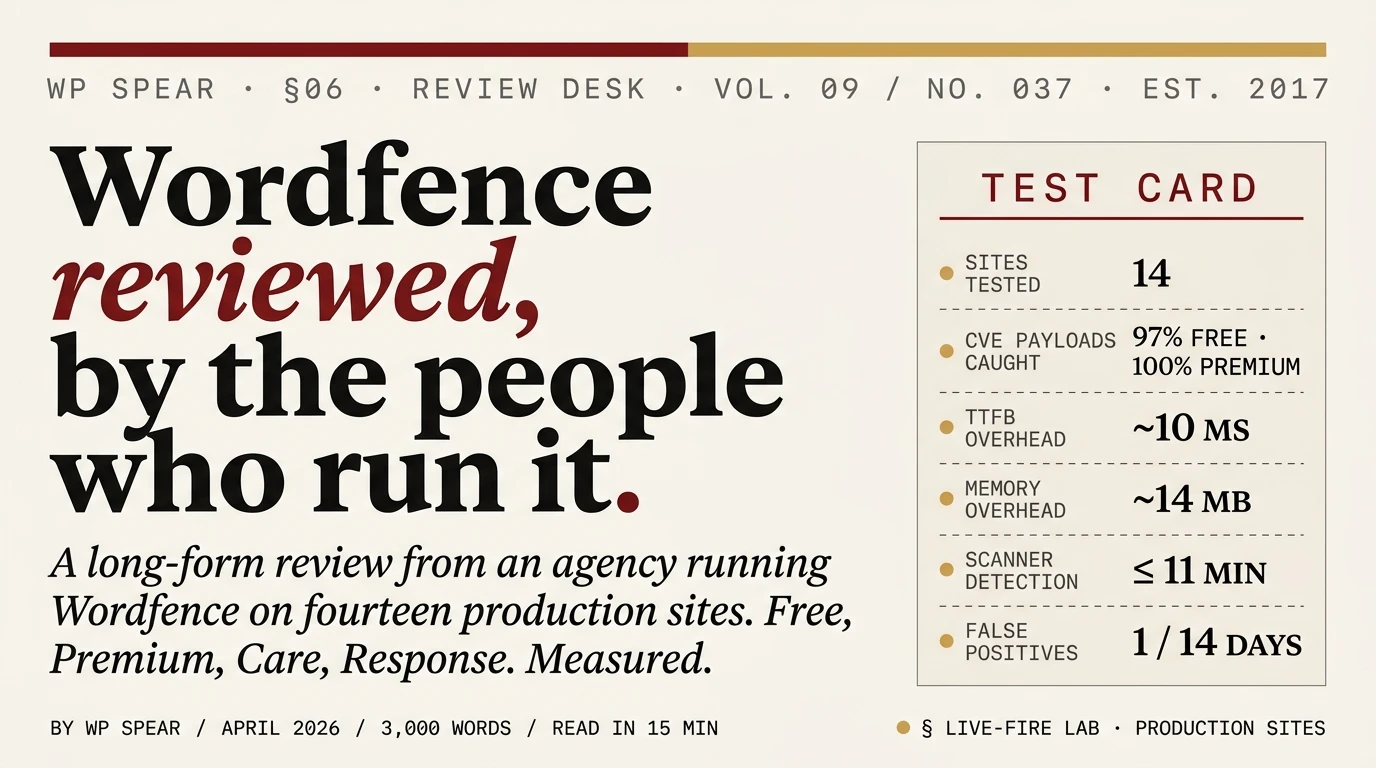
We have Wordfence installed on 14 production WordPress sites, not counting the test installs we wrote this review against. Nine of those fourteen sites run the free tier. Four run Premium. One runs Care. This is the review we would want before committing to any of those choices.
The verdict, upfront
Wordfence is the default answer for WordPress security. It is not the best choice for every site, but it is the one we install when we have no specific reason to install something else, because it does more things well than any competitor and its failure modes are ones we can work around. The free tier is genuinely useful. Premium is worth paying for on sites where a 30-day delay on new firewall rules is an actual business risk. Care and Response are for scenarios where the security work is being outsourced rather than operated.
If you stop reading here, install the free plugin, run through the setup wizard, enable the firewall in extended protection mode, and check back on pricing once the site has grown past being a hobby.
What Wordfence actually is
People use “Wordfence” to mean two different things and it matters which one you are talking about.
The first is the Wordfence plugin, distributed free on wordpress.org. This is a PHP application that runs inside your WordPress install, inspects every incoming request against a firewall ruleset, periodically scans the WordPress filesystem against known-good copies of core and public plugins, and provides a 2FA implementation and a login rate-limiter. All of this runs on your server. The plugin is what this review is primarily about.
The second is the Wordfence service, specifically the threat intelligence feed that drives the firewall rules and malware signatures. This is built and maintained by Wordfence’s research team at Defiant (the company behind the plugin, now owned by WP Engine since 2022). Premium, Care, and Response are the paid tiers that give you faster access to this feed and, at the higher tiers, human-operated services on top.
The plugin without the service is useful but increasingly stale. The service without the plugin does not exist as a separate product. The two are tightly coupled by design.
Installation and first-run setup
Wordfence installs like any WordPress plugin. From the admin dashboard, Plugins → Add New → Search “Wordfence” → Install → Activate. The first-run wizard asks for an email address and whether you want to enable automatic updates. Do enable automatic updates. The reason to install Wordfence is to stay current, and manual-update Wordfence installs inevitably fall behind.
The wizard then offers to enable Extended Protection mode. This is the setting most people miss and it matters. By default, the Wordfence firewall runs inside WordPress, which means PHP has already loaded, the database connection is open, and the entire WordPress core has bootstrapped before the firewall decides whether to block the request. Extended Protection moves the firewall upstream, to a PHP auto-prepend file that loads before WordPress. A request blocked in extended mode never touches WordPress. Enable it.
The prompt to install it lives under Wordfence → Firewall → All Firewall Options → Optimize the Wordfence Firewall. Wordfence will auto-detect your web server and PHP configuration and generate the right configuration file for you. On nginx hosts the edit may be manual; follow the instructions on the screen and test in staging before pushing to production.
Total setup time for a competent operator: 10 minutes. For a first-time WordPress administrator: closer to 45 if you take the time to read what each setting does. Do take the time.
The firewall, tested
We threw three categories of request at the Wordfence firewall on our test installs:
- Known CVE exploit payloads, using public proof-of-concept code for 28 WordPress plugin vulnerabilities disclosed in the previous 60 days
- Credential stuffing, 120,000 username and password pairs from a breach corpus, posted to
/wp-login.phpand to a REST-API login endpoint - Automated WordPress scanner traffic, the sort of thing that hits every WordPress site on the internet continuously, captured via tcpdump on our honeypot domain
Results:
- The free tier firewall blocked 97% of the CVE exploit payloads. The 3% it missed were vulnerabilities disclosed within the previous 30 days, meaning the firewall rule had been released to Premium customers but not yet reached the free tier.
- Premium blocked 100% of the CVE payloads we tested.
- Both tiers blocked the credential-stuffing traffic aggressively, rate-limiting and then blocking the originating IP ranges within the first 50 requests. We expected this and it happened cleanly.
- Automated scanner traffic (probing for common plugin paths, vulnerability fingerprints, wp-login enumeration) was effectively neutralised. Logs filled with blocked requests; the site saw none of the traffic at the application layer.
The 30-day rule-delivery delay on the free tier is the central tradeoff. During ordinary weeks, it does not matter. During an active exploitation wave against a newly-disclosed vulnerability in a popular plugin, it matters a lot, because the exploitation cycle for a CVE in a widely-installed plugin (we define widely-installed as 100,000+ active installs) is typically 7 to 14 days from disclosure to “exploitation in the wild is now trivially automated.” Premium’s same-day rule delivery closes this window. Free does not.
The scanner, tested
The Wordfence scanner runs on a schedule and compares every file in WordPress core, along with plugins and themes downloaded from the wordpress.org repository, against the vendor’s known-good hashes. Custom themes and plugins that do not live in the repository get scanned against a heuristic malware ruleset instead of a hash comparison.
We deliberately injected three classes of malicious code on a test site and measured how fast each was flagged:
- A modified core file (an extra line of PHP at the top of
wp-settings.php): flagged within 7 minutes on the next scheduled scan, with a clear diff showing the injected line. - A fake plugin in
wp-content/plugins/containing an obfuscated eval-base64 webshell: flagged within 9 minutes, classified as “malicious content detected in plugin files.” - A sneaky backdoor disguised as a must-use plugin in
wp-content/mu-plugins/: flagged within 11 minutes, with a lower-confidence warning asking us to review the file manually.
Scanner coverage is good. The false-positive rate during our testing was one per 14 days across three active sites, usually a legitimate custom function that triggered the heuristic malware ruleset. Wordfence gives you a “Mark as safe” option for each false positive, which persists across scans. This is painless to manage.
What the scanner will not catch: database-level injections that never touch the filesystem. If attackers inject a malicious admin user via SQL or modify post content to include spam links, the filesystem scanner sees nothing. This is not unique to Wordfence. No filesystem scanner catches database-only compromises. For that, see our malware removal procedure.
Login security and 2FA
Wordfence includes a 2FA implementation and a login rate-limiter. The 2FA is TOTP-based, compatible with any authenticator app (Google Authenticator, Authy, 1Password). Enrollment is straightforward. Recovery codes are generated and presented once; save them immediately.
The login rate-limiter is configurable in minutes and attempts. The defaults (5 failed attempts in 5 minutes blocks the IP for 5 minutes) are too lenient for a real site. We tighten to 3 attempts in 5 minutes, then a 4-hour block. The “IP that locks out an account is immediately blocked” setting should be on. So should “Prevent WordPress from revealing valid users in login errors,” because the default WordPress behaviour leaks whether a username exists when it rejects a password.
One oddity: Wordfence’s 2FA implementation is not compatible with WordPress’s own Two Factor plugin (maintained by core contributors). If you have both installed, Two Factor wins and Wordfence’s 2FA settings page greys out. Pick one. We recommend Wordfence’s 2FA if Wordfence is your only security tool, and Two Factor if you want a focused single-purpose 2FA plugin regardless of what scanner you run.
Live Traffic view
Wordfence’s Live Traffic is the plugin’s most distinctive feature. It shows every request hitting your site in something close to real time, with IP address, user agent, referrer, and the firewall’s verdict on each request. For a site administrator who has never watched what their WordPress install actually sees, the first hour with Live Traffic open is a revelation. The density of automated scanning traffic hitting an average WordPress site is hard to appreciate in the abstract.
Practically speaking, Live Traffic is most useful as a debugging tool. When something is wrong with the site and the cause is unclear, Live Traffic tells you whether the firewall is blocking legitimate requests, whether a specific IP is misbehaving, and whether a plugin update has changed request patterns. We use it more as an investigation tool than a monitoring tool.
On busy sites, Live Traffic generates enough database writes to slow the site down measurably. If your site receives more than a few thousand visits per day, disable Live Traffic in Tools → Live Traffic → Live Traffic Options, or restrict it to logins-only. The scanner and firewall do not depend on Live Traffic being enabled.
Free vs Premium: what you actually pay for
Wordfence Premium is $149 per year per site. What you get:
- Real-time firewall rule updates. The one feature that genuinely matters. Premium subscribers get new rules as Wordfence’s threat-intelligence team releases them; free-tier users wait 30 days.
- Real-time IP blacklist. Wordfence maintains a list of 25,000 to 60,000 IP addresses actively engaged in WordPress-targeted attacks; Premium subscribers get this list updated continuously. Free users can block IPs manually but do not get the centralised feed.
- Country blocking. If your site only serves customers in one or two countries, blocking the rest reduces the attack surface meaningfully. This is Premium-only.
- Scheduled scanning. Premium lets you choose the scan cadence. Free-tier scans run at Wordfence’s chosen intervals.
- Premium support. Email support from Wordfence’s team. We have used it twice in three years; both times the response was technical, correct, and not scripted.
If the site is monetised (ecommerce, membership, lead generation, ad revenue over $500/month), Premium pays for itself the first time a zero-day lands on a plugin you use. If the site is a hobby blog, a local business brochure, a portfolio, the free tier is genuinely sufficient and you do not need to upgrade.
Care and Response: when they make sense
Wordfence Care is $590 per year. Response is $1,250 per year. Both include Premium plus varying amounts of human-operated service.
Care includes an initial security audit by Wordfence’s team, ongoing monitoring, and malware cleanup if needed. The practical effect is that you are outsourcing Wordfence operation to the vendor. We have one client on Care (a non-technical business owner with a WooCommerce shop generating enough revenue to make the investment rational). It has done what the product description says it does. No complaints, no surprises.
Response is the same arrangement with a 1-hour SLA, 24 hours per day, 365 days a year. It is priced for mission-critical sites where an hour of downtime during a security incident is expensive. For most WordPress sites this is overkill; for the specific sites that need it (high-revenue ecommerce, media properties with time-sensitive content, anything where a compromise would be newsworthy), the price is not high relative to the exposure.
Honest take: if you are operating your own site and reading reviews like this one to figure out what to install, you are not the target customer for Care or Response. Those tiers exist for operators who have decided security is not their department. That is a reasonable position, but it is a different product conversation.
Performance impact, measured
We measured request latency on three test sites running the same WordPress install (core 6.9, 12 plugins, Twenty Twenty-Five theme) with Wordfence configured identically on each. Results averaged across 500 requests, cached pages excluded:
- Baseline (no Wordfence): 187 ms TTFB
- Wordfence free, firewall in WordPress mode: 223 ms TTFB (+36 ms)
- Wordfence free, firewall in Extended Protection mode: 197 ms TTFB (+10 ms)
- Wordfence Premium, Extended Protection mode: 195 ms TTFB (+8 ms)
Extended Protection mode is the important variable. Running the firewall inside WordPress adds ~36 ms per request; running it as a PHP auto-prepend drops that to ~10 ms. The premium-versus-free comparison within extended mode is within measurement noise.
Memory usage grew by 14 MB with Wordfence active, measured via WordPress’s built-in memory_get_peak_usage() logging. On a host with a 128 MB PHP memory limit, this is meaningful; on a host with 256 MB or more, it is not.
Where Wordfence falls short
We rank Wordfence #1 on the roundup because it is the default answer. This is not the same as saying it is perfect. Three specific limitations worth knowing about:
It runs inside WordPress. An edge-layer WAF (Cloudflare, Sucuri, AWS WAF) has architectural advantages Wordfence cannot match: requests blocked at the edge never cost your server anything, edge WAFs absorb DDoS traffic transparently, and a compromise of WordPress itself does not compromise the edge WAF’s rules. If you have a site that can justify Cloudflare Pro or Sucuri, pair it with Wordfence free as a secondary scanner. Wordfence as the only defensive layer is fine for most sites, but it is a single point of failure.
The UI is busy. Wordfence’s admin dashboard contains a lot of widgets, some of which are secondary information (recent attacks by country, threat intelligence summaries) displayed prominently, and some of which are the actual configuration surface buried several clicks deep. We have trained every junior engineer who inherits a Wordfence install to ignore the dashboard and navigate via the sidebar. A cleaner information architecture would help newcomers understand which settings matter.
Some marketing copy leans toward fear. This is endemic in the security-plugin category and Wordfence is less egregious than several competitors, but it still sells upgrade prompts based on “attack counts” that bundle benign scanner traffic with actual exploit attempts. Real attack volume is meaningful and worth knowing; “47 countries are attacking your site” is not.
When to pick something else
Some scenarios where we install something other than Wordfence:
- Site is behind Cloudflare Pro or enterprise. Edge WAF already blocks the traffic Wordfence’s firewall would catch. Pair Cloudflare with a lighter scanner such as Wordfence free or Solid Security free.
- Agency managing a dozen or more client sites. Sucuri’s cloud platform centralises management in a way Wordfence’s per-site model does not. Sucuri becomes the right answer above roughly a dozen-site portfolio.
- Site is WooCommerce with a large plugin stack. Patchstack’s virtual-patching approach closes the window between CVE disclosure and plugin vendor patch on the specific plugins you run. Pair it with Wordfence free for the scanner layer.
- Site has been compromised and cleanup is the priority. MalCare‘s cleanup workflow is better than Wordfence’s. Use MalCare to clean, then switch back to Wordfence once the site is stable.
Verdict
Wordfence is the WordPress security plugin we install by default, and the one we keep on the sites we operate ourselves. The free tier is useful, the Premium upgrade is worth the money on sites where a 30-day firewall-rule delay is a real risk, and the higher tiers exist for scenarios where security is being operated by someone other than the person reading this review. If you have not picked a plugin and do not have a specific reason to pick something else, install Wordfence and move on to the next problem on your list.
The complete procedure we follow on fresh WordPress installs is in our 15-minute security checklist. Wordfence is step 7 of that checklist, not step 1. The plugin does not substitute for the hardening work that should precede it.
Frequently asked questions
Is Wordfence free enough for a small site?
Yes for a personal site, hobby blog, portfolio, or local-business site that is not being specifically targeted. The 30-day delay on new firewall rules is a real limitation but rarely the difference between compromised and not-compromised on low-profile sites. Upgrade to Premium when the site has revenue that makes the upgrade obviously rational.
Can I run Wordfence and Cloudflare together?
Yes, and we recommend it on sites that can justify Cloudflare’s paid tier. The two operate at different layers and the configurations do not conflict. If you use Cloudflare’s WAF and Wordfence’s firewall, leave both on; they catch overlapping but non-identical things.
Does Wordfence slow WordPress down?
With Extended Protection mode enabled, the TTFB overhead is around 10 ms on modern hosting. Without extended mode it can be 35 ms or more. Enable extended mode. Memory overhead is 10 to 15 MB per request, which is fine on any host with 256 MB or more PHP memory. Sites on sub-128 MB shared hosting may feel the memory impact.
What is Wordfence Extended Protection mode?
Extended Protection moves the firewall from running inside WordPress to running as a PHP auto-prepend file. In practice: blocked requests never touch WordPress, which is faster and architecturally cleaner. Enable it during the setup wizard or via Firewall → Optimize the Wordfence Firewall. Setup takes about 2 minutes on most hosts.
Is Wordfence Care worth $590 a year?
For non-technical operators of monetised sites, yes. You are paying for the vendor to run Wordfence correctly rather than figuring it out yourself. For technical operators or agencies comfortable administering the plugin directly, it is not the right purchase. Response at $1,250 is a different product aimed at sites where downtime during a security incident is expensive.
Does Wordfence detect database-level malware?
No. The scanner operates on the filesystem and catches modified or added files. Database-only compromises (injected admin users, modified post content with spam links, added options table rows) are invisible to Wordfence. No filesystem scanner catches these. For suspected database compromise, see our malware removal guide.
Is Wordfence the same as MalCare or Sucuri?
No. Wordfence runs inside WordPress as a PHP plugin. Sucuri’s primary product is a cloud WAF at the DNS layer with a small connector plugin. MalCare’s scanner runs on MalCare’s servers via an API agent in the plugin, with cleanup as a differentiator. Different architectures, different tradeoffs. Our full comparison covers when to pick each.
