
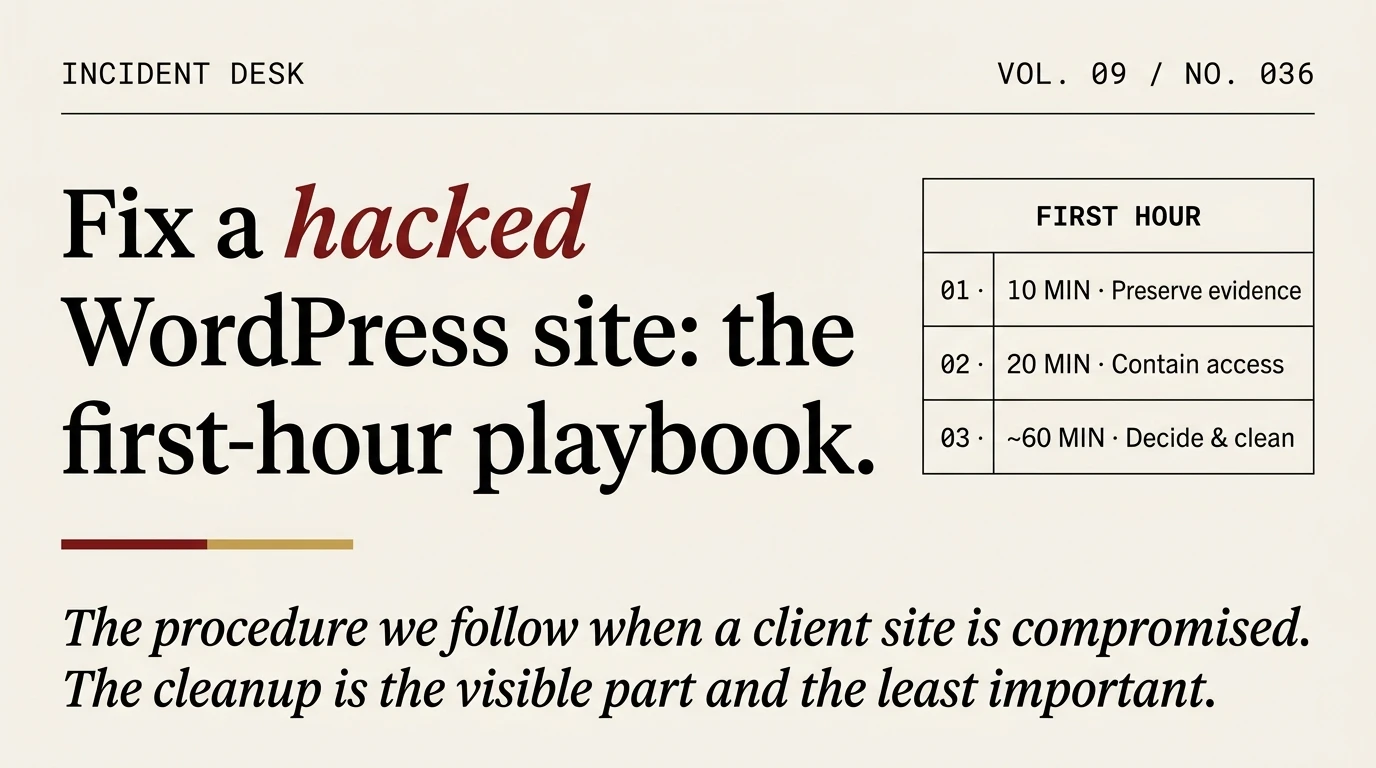
This is the incident-response playbook we follow in the first hour after a client tells us their WordPress site is hacked. It covers the decisions, not the cleanup itself. For the deep technical cleanup, see the procedure we run on client sites.
We get the same message a few times a quarter. It is almost always a Sunday. The agency owner forwards a screenshot of Google saying “This site may be hacked”, or a customer complains that the checkout page redirects them to a casino in Macau, or Search Console finally breaks its silence with a security issue that was flagged weeks ago.
The next thing that happens, in most cases, is the wrong thing.
Someone opens the WordPress admin, starts deleting files they recognise as malicious, runs a scanner plugin, clears some options, and declares the site clean. Seven weeks later the same site is back on the Google blocklist because the entry point was never found. The cleanup is not the job. Closing the door is the job. The cleanup is the visible part of the work and the least important.
Here is what the first hour should look like instead.
Stop before you touch the site
The instinct is to log in and start fixing. Resist it for ten minutes. Two reasons.
First, the moment you log in as an administrator on a compromised site, any session-stealing backdoor in the install has your credentials. Attackers leave session-harvesting hooks in wp-login.php that are designed to survive the obvious cleanup steps. Every admin login before containment is one more set of credentials the attacker already has.
Second, the evidence you need to figure out how they got in is decaying fast. Access logs rotate. Cron events fire and overwrite. Scheduled tasks add new admin users that look like they were there all along. The first ten minutes are not for fixing. They are for taking a snapshot you can read later.
What you actually want to do, in order:
- Pull the last 14 days of access logs off the server before anything else.
scpthem to your local machine. nginx access logs usually sit at/var/log/nginx/access.log*. Apache at/var/log/apache2/access.log*. Shared hosts usually expose them through cPanel under “Raw Access”. - Snapshot the database.
mysqldump --single-transactionthe full database to a local file. Name itinfected-YYYYMMDD.sql. Do not overwrite any earlier backup. - Snapshot the filesystem.
rsyncthe entire WordPress install, includingwp-content/uploads/, to a folder outside the server. This is evidence, not a restore point. - Now you can log in.
Ten minutes. No plugins installed, no files deleted, no options cleared. Just evidence preserved.
Confirm you actually have a compromise
About one in four “my site is hacked” reports we get is something else. A parked domain showing ads. An expired SSL certificate making the browser display a scary page. An SEO competitor building spammy backlinks that look like a compromise indicator to unsophisticated tooling. Before we spend four hours cleaning, we confirm.
The fastest confirmation checks, in order of cost:
- Sucuri SiteCheck scans the public-facing site and returns a plain-language verdict. Free. Takes 30 seconds. If SiteCheck sees nothing, the compromise is either internal (database-only), user-agent-targeted (only serves to Googlebot), or in a path SiteCheck did not crawl.
- Fetch the homepage as Googlebot. A large class of injections (pharma hack, Japanese keyword hack, cloaked redirects) only serve malicious content to search-engine crawlers. The site looks fine in your browser and awful in the Google index.
curl -A "Mozilla/5.0 (compatible; Googlebot/2.1; +http://www.google.com/bot.html)" https://yoursite.com/ | grep -iE "viagra|casino|poker|payday|loan"is the lowest-effort test. - Check Google Search Console under Security Issues. If Google has flagged the site, the report usually names the infection family. Google’s malware documentation describes the families they classify.
- List administrators.
wp user list --role=administratorover SSH. Any account you do not recognise is a confirmed compromise, regardless of what else you find.
If all four checks come back clean, you probably do not have a hack. You have something else. Figure out what that something else is before you start treating the site as compromised, because incident response on a healthy site wastes a day and breaks things that were working.
Contain before you clean
Confirmed compromise. Now you contain.
The sequence matters. People get this wrong constantly. They start cleaning files before they freeze the attacker’s access, and the attacker reinfects from a backdoor they did not know existed. Freeze first, clean second.
Five containment moves, all of them before any file deletion:
- Take the site offline. Drop a
.maintenancefile at the WordPress root or return a 503 from the webserver. Do not use a maintenance-mode plugin, it runs inside the compromised install. If the site is e-commerce and you cannot afford downtime, at minimum block/wp-admin/and/wp-login.phpfrom all IPs except your own at the nginx or Apache level. - Rotate hosting credentials. Control panel password. SFTP. Database user if the database credentials are in
wp-config.phpin plain text (they are). Do not rotate WordPress admin passwords yet. Rotating admin passwords while the backdoor is still reading the database just updates the attacker’s stored credential. - Block outbound from the server if the host allows it. Backdoors phone home to fetch new payloads. Severing the outbound connection during cleanup stops fresh malware from being pulled in while you are working.
- Suspend scheduled tasks.
wp cron event listto see what is scheduled. Attackers plant cron events that reinstall the backdoor after cleanup.wp cron event delete <hook>for anything you do not recognise. - Freeze the backup rotation. Automated backups that run hourly or daily are poisoned the moment the compromise started. Keep the infected backup for forensics but stop overwriting the last clean one. If the last clean backup is 30 days old you still want it.
Containment is done. Now comes the decision that defines the next four hours.
Three routes out, and how to pick one
Once the site is frozen you have three realistic paths. Pick one, do not mix them.
Route A: Restore from a known-clean backup
Cheapest and fastest if you have a clean restore point from before the compromise started. The hard part is proving the backup is actually clean. If you do not know when the compromise started, you do not know which backup is safe. In practice we only recommend restoring from a backup that is at least two weeks older than the earliest log entry of suspicious behaviour.
Restoring loses content. Any posts, orders, or user signups since that backup are gone. For editorial sites this is usually fine. For e-commerce sites it usually is not.
Route B: Clean the live install yourself
Appropriate if you have SSH access, are comfortable with diff and find, and can budget two to four uninterrupted hours. We publish the full cleanup procedure for exactly this path. The short version: compare every core file against a freshly-downloaded WordPress release, audit every PHP file modified in the last 30 days, clear injected content from wp_options and wp_posts, rebuild .htaccess and wp-config.php from scratch, patch the vulnerability that let them in.
The reason this path fails for most operators is not the cleanup. It is the entry-point analysis. The cleanup is mechanical. Finding the original vulnerability requires reading access logs and database timestamps, and most operators do not. Seven weeks later the site gets hit again.
Route C: Pay a specialist cleanup service
Appropriate if the site is revenue-producing, the compromise looks sophisticated (multiple entry points, custom malware, admin accounts you did not create), or you do not have the time. Specialist services handle the cleanup and issue a “clean” certificate that satisfies Google Search Console’s review process. Typical pricing in 2026 runs $200 to $800 per emergency cleanup depending on provider and site complexity.
The ones we recommend:
- MalCare Emergency Cleanup is a flat-rate service with an explicit SLA. They are a plugin vendor but their cleanup arm operates separately. We have handed five client sites to them over the past year, average turnaround was four hours for standard infections.
- Sucuri Incident Response is the premium option. Slower and more expensive than MalCare, but their forensic writeups are publishable-quality and the Sucuri platform integrates a post-cleanup monitor that keeps watching. Choose them when the compromise looks like a targeted attack.
- Wordfence Site Cleaning is the option we recommend if the site is already running Wordfence Premium. The cleanup engineer sees the same audit log that Wordfence has been collecting, which shortens the forensic phase.
The thing we do not recommend is a one-click scanner plugin claiming to clean the site for free. Scanner plugins find the obvious injections. The obvious injections are not what reinfects you. The second-stage backdoor, the rewritten .htaccess, the poisoned cron event, the admin account created eight days before the visible attack, those are what reinfects you. Scanners do not find them reliably, and the operator who trusted the scan does not go looking.
Communicating the incident
Most WordPress hack writeups skip this section entirely. The technical cleanup is only half the job on any site with real users or regulated data.
Start with your host. If the site is on shared hosting, the host has probably already noticed something unusual and may have throttled the account. Opening a ticket yourself prevents them from pulling the site down without warning, and most providers offer free cleanup guidance if you ask early instead of discovering the compromise through their abuse queue.
If the site processes payments, payment processors come next. Stripe and PayPal both have incident notification procedures, and failing to self-report a breach of a checkout page that may have leaked card data is the kind of thing that ends merchant accounts. PCI DSS obligations apply if you process cards, even on a small site.
Google Search Console is the third stop. After the site is clean (not before) submit a review request under Security Issues. Typical response time is 48 to 72 hours. A site sitting under a Google security flag is effectively invisible in organic search, so getting the flag lifted is more urgent than most operators realise.
Users come last but carry the most legal weight. If admin accounts, user passwords, or payment details may have been exposed, affected users have a legal right to know in most jurisdictions. GDPR Article 33 requires notification within 72 hours of discovery for EU users. Similar obligations exist under California’s data breach notification law and many other state statutes. When in doubt, notify.
We have seen agencies clean a client’s site competently and lose the account anyway because the client found out from a customer that their data was leaked. Communication is not optional.
What counts as clean
“Clean” is not a feeling. It is a measurable state. Before you take the site out of maintenance mode, all of these should be true:
diff -qragainst a freshly-downloaded WordPress core release shows no differences inwp-admin/orwp-includes/.- Every file in
wp-content/plugins/andwp-content/themes/matches the vendor-published checksum or has been replaced from the vendor’s distribution. wp user list --role=administratorshows only admin accounts you recognise, with last-login timestamps that match their actual owners.wp cron event listcontains only standard WordPress and plugin-registered cron events. Nothing referencing base64 or eval in the hook name.- Fetching the site as Googlebot returns the same content as fetching it as a regular browser.
- Sucuri SiteCheck and Google’s Safe Browsing lookup both return clean results.
- You have patched, from the vendor, whatever software or plugin was exploited. A site that is clean today but still running the vulnerable plugin will be reinfected before the end of the week.
Seven items. Any one of them failing means the site is not clean yet.
After: close the door
This is the part nobody writes about because it is boring and happens after the adrenaline has worn off. It is also the part that prevents the next incident.
In the 24 hours after cleanup, do the things that should have been in place before:
- Run the 15-minute WordPress security checklist against the rebuilt site. Force two-factor on every admin account, rotate every API key, tighten file permissions.
- Put a WAF in front of WordPress. Pick one from the five we actually install or route traffic through Cloudflare’s WAF at the DNS level. A WAF absorbs the bulk of automated exploitation attempts before they reach the WordPress install.
- Enable audit logging. Wordfence or the free WP Activity Log plugin. The next time something unusual happens, you want the evidence already collected.
- Set up Patchstack monitoring or equivalent virtual-patching. A paid subscription to Patchstack patches known vulnerabilities at the WAF level even when you have not updated the plugin yet.
- Review what was exposed and decide whether to disclose. If customer data was touched, disclose. If the compromise was opportunistic and touched nothing sensitive, disclose internally to stakeholders anyway.
- Write up what happened. Even a two-paragraph internal document. The next time you or your agency sees the same attack pattern, you will recognise it in fifteen minutes instead of an hour.
Prevention is cheaper than cleanup by about an order of magnitude. We have the four-layer protection model that covers what actually stops an attack before the incident-response playbook has to run.
Frequently asked
How much does professional WordPress malware cleanup cost?
Emergency cleanup runs $200 to $800 per incident in 2026. MalCare starts around $200 for standard infections. Sucuri starts around $500. Wordfence Site Cleaning runs around $359 for a standard site, more for multisite or e-commerce. Ongoing monthly subscriptions that include cleanup allowances cost less per incident if you get hit repeatedly, which is a separate problem you should solve.
Can I just restore from a backup instead of cleaning?
If you have a backup from before the compromise started and you can afford to lose everything since then, yes. The hard part is knowing when the compromise started. Access logs and file modification timestamps narrow it down. If you cannot narrow it down, the backup you restore may already be infected.
How long does Google take to remove a security warning after cleanup?
Two to three days for most sites. Submit the review request under Google Search Console’s Security Issues tab only after you are certain the site is clean. A failed review stacks a cooldown before you can resubmit.
Why does my site keep getting hacked?
Because the entry point was never closed. Reinfection within 30 to 60 days of an incomplete cleanup is the norm, not the exception. The answer is almost always an outdated plugin, a weak admin password that was never rotated, or a backdoor the cleanup missed. Run the full cleanup procedure and audit everything.
Is Wordfence Free enough to clean a hacked site?
No. Wordfence Free scans for known malware signatures. It finds the obvious injections. It does not find second-stage backdoors, poisoned database options, or custom malware. Use it for detection. Use a dedicated cleanup service for response.
Should I delete and reinstall WordPress from scratch?
Sometimes yes. If the compromise is extensive, if you do not trust the integrity of the filesystem, or if you lack the time for surgical cleanup, a full reinstall from a clean WordPress download, plus a database sanitisation, plus reimporting only the known-good content, is faster and more reliable than trying to save everything. Plan for a few hours of content review.
